Understanding Windows 11 System Requirements
Windows 11 demands specific hardware: TPM 2.0 chip, UEFI firmware, Secure Boot capability, and 4GB RAM minimum. Microsoft implemented these requirements for security purposes, but they exclude millions of older computers that run Windows 10 perfectly well. The bypass process doesn't remove these checks from your system permanently; it simply allows the installation media to proceed without validation. Understanding what you're bypassing helps you make an informed decision about whether this approach suits your hardware.
What Rufus Does and Why It Works
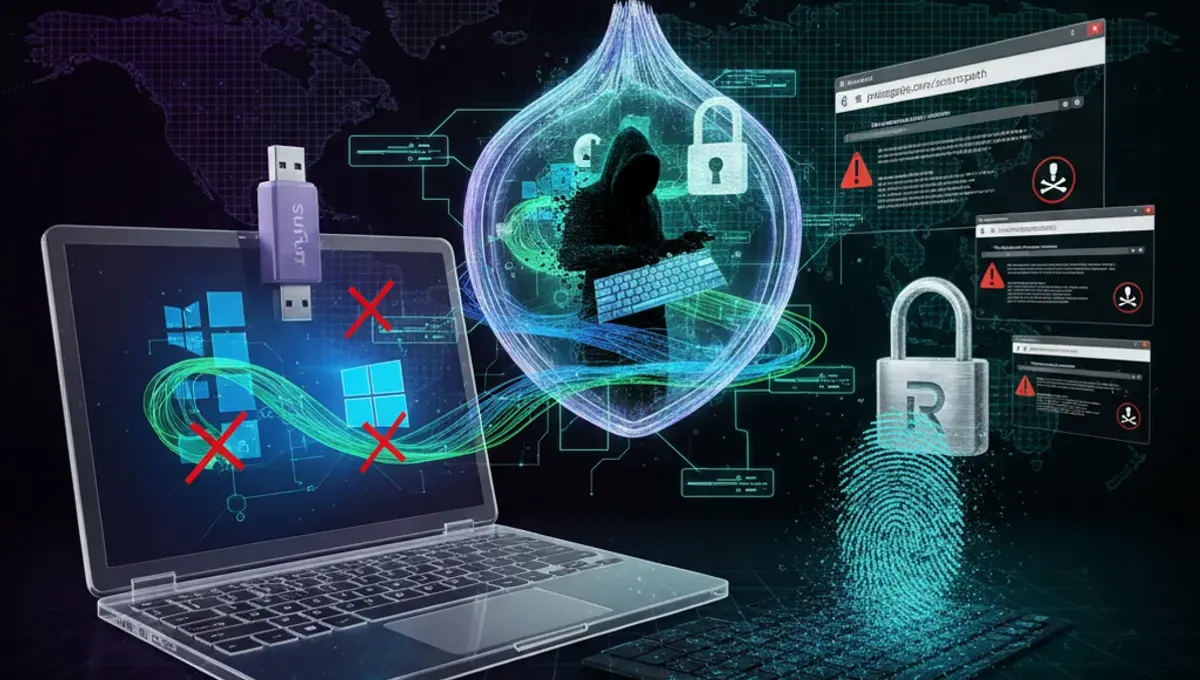
Rufus is a utility for creating bootable USB drives from ISO files. Beyond basic functionality, it includes an option to bypass Windows 11 system requirement checks during installation. When you enable this feature in Rufus, it modifies the installation media to skip hardware validation checks. The tool doesn't hack Windows itself; it simply removes the barriers that prevent installation on unsupported hardware. This makes Rufus one of the most straightforward methods for users wanting to install Windows 11 on older machines without complex workarounds.
Step-by-Step: Using Rufus to Bypass Requirements
Download the latest Rufus version from its official website and insert a USB drive with at least 8GB capacity. Open Rufus and select your USB device. Click the disk icon to choose your Windows 11 ISO file. In the partition scheme, select GPT for UEFI systems. Critically, look for the option labeled 'Start' or advanced settings where you'll find the checkbox for bypassing Windows 11 system requirements. Enable this option, then proceed with creating the bootable drive. Once complete, restart your computer, boot from the USB drive, and follow the standard Windows 11 installation process.
Bypassing Internet Requirements During Installation
Windows 11 setup typically requires an internet connection and Microsoft account. During installation, when prompted for network connection, you can skip this step by using keyboard shortcuts or selecting offline account options. Some versions of Rufus allow you to pre-configure these settings in the installation media itself. If your system doesn't have internet access during setup, you can complete installation offline and connect afterward. This is particularly useful for machines in isolated environments or those with unreliable connectivity during the initial setup phase.
Potential Issues and Troubleshooting
After bypassing requirements and installing Windows 11, you might encounter driver issues or performance problems on older hardware. Some devices lack proper Windows 11 drivers, causing hardware malfunction. Check your motherboard manufacturer's website for BIOS updates that might improve compatibility. If installation fails repeatedly, verify your ISO file integrity and ensure your USB drive isn't corrupted. Some older systems may struggle with Windows 11 even after successful installation; in these cases, reverting to Windows 10 is often the more practical solution.
Security Considerations When Bypassing Requirements
Bypassing Windows 11 requirements means installing an operating system on hardware it wasn't designed for. This doesn't create security vulnerabilities in Windows itself, but unsupported hardware may lack critical security features like TPM 2.0 that Windows 11 relies on. Your system will still receive security updates, but you're operating outside Microsoft's tested and supported configurations. Consider whether your use case justifies this trade-off. For critical systems handling sensitive data, sticking with supported hardware and Windows 10 might be the safer choice.
Alternatives to Bypassing Windows 11 Requirements
If your hardware is too old for Windows 11, you have other options. Windows 10 remains fully supported and receives security updates through October 2025. Linux distributions like Ubuntu or Fedora run efficiently on older hardware and offer full functionality for most users. Alternatively, upgrading your motherboard and CPU to meet Windows 11 requirements might be cost-effective if your system is otherwise capable. Evaluate your specific needs before deciding whether bypassing requirements is worth the potential compatibility headaches.
Frequently asked questions
Is it legal to bypass Windows 11 requirements using Rufus?
Yes, bypassing system requirements for personal use is legal. You're not circumventing copy protection or licensing; you're simply installing an OS you own on your own hardware. However, this voids any support from Microsoft for that installation.
Will my computer run Windows 11 smoothly after bypassing requirements?
Performance depends on your hardware. Older systems may experience slowdowns or driver incompatibilities. Windows 11 is more resource-intensive than Windows 10, so older machines might struggle even if installation succeeds.
Can I still receive Windows 11 updates after bypassing requirements?
Yes, your system will receive security and feature updates normally. However, Microsoft doesn't officially support installations on unsupported hardware, so you won't receive technical support if issues arise.
What if Rufus doesn't show the bypass option?
Ensure you're using a recent version of Rufus. Older versions may not include this feature. Download the latest version from the official Rufus website and try again.
Can I go back to Windows 10 if Windows 11 doesn't work?
Yes, you can reinstall Windows 10 using the same Rufus process with a Windows 10 ISO file. Keep your Windows 10 installation media or ISO file as a backup before attempting Windows 11.