Understanding Dual Boot Basics
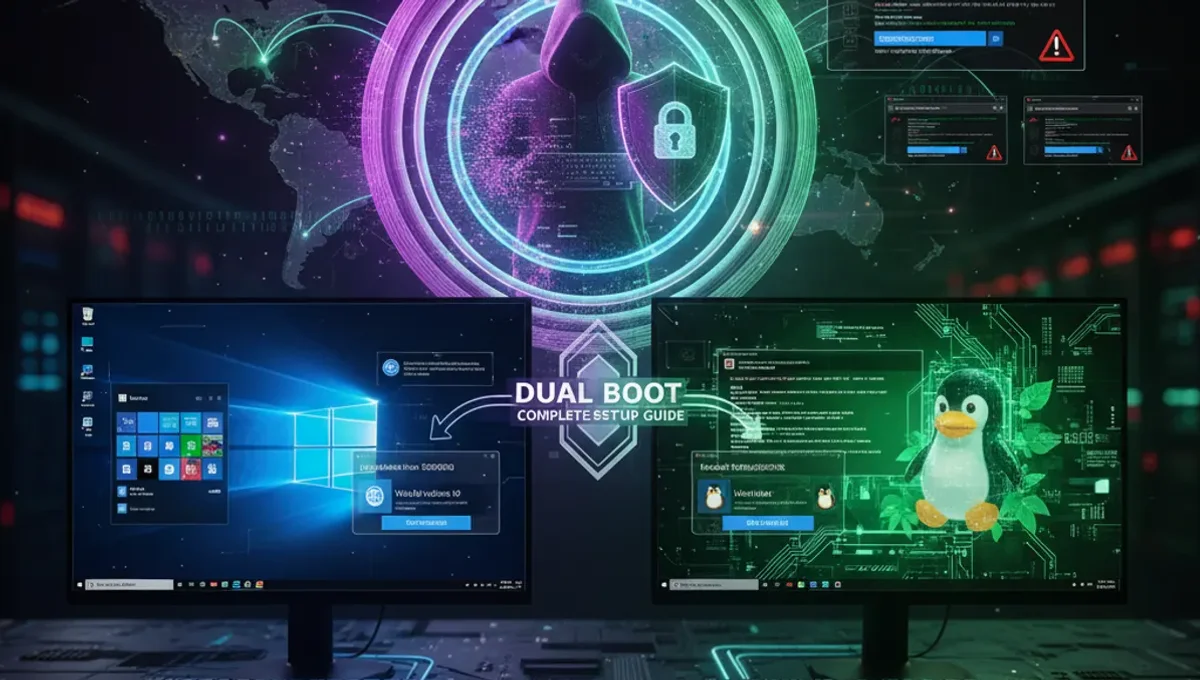
Dual booting means installing two operating systems on separate partitions of the same hard drive. When you start your computer, a bootloader menu appears, letting you choose which OS to load. Windows typically installs first since it doesn't recognize Linux partitions, while Ubuntu can detect and coexist with Windows. The key is maintaining separate partitions for each system and ensuring the bootloader can access both. GRUB, the GNU bootloader, handles this on most Linux systems. Your computer's firmware (BIOS or UEFI) must support multiple boot options, which most modern machines do.
Preparing Your System and Backing Up Data
Before attempting dual boot Windows with Ubuntu, back up all important files to an external drive. You'll be modifying your disk partitions, and mistakes can result in data loss. Check your current disk space and ensure you have at least 50GB free for Ubuntu, though 100GB provides more comfortable working room. Disable Secure Boot temporarily in your BIOS settings, as it can interfere with Linux installation. Document your Windows license key and recovery information. Create Windows installation media on a USB drive if you need to reinstall. Having a recovery plan prevents frustration if something goes wrong during the dual boot Windows Ubuntu setup process.
Partitioning Your Disk
Shrink your Windows partition to make room for Ubuntu. In Windows, open Disk Management, right-click your main drive, and select 'Shrink Volume.' Allocate space for Ubuntu's root partition, home directory, and swap space. A typical setup uses 30GB for root, remaining space for home, and 2-4GB for swap. After shrinking, you'll see unallocated space where Ubuntu will install. Don't create new partitions yet; Ubuntu's installer handles this during dual boot Windows Ubuntu installation. If you're starting fresh, use Windows installation media to partition the drive first, leaving unallocated space. Proper partitioning prevents conflicts between dual boot Windows and Ubuntu filesystems.
Installing Ubuntu Alongside Windows
Create a bootable Ubuntu USB drive using Rufus or Etcher. Insert the drive and restart your computer, entering the boot menu (usually F12, F2, or Del depending on your manufacturer). Select the USB drive to boot Ubuntu's live environment. Choose 'Install Ubuntu' and proceed through the installer. When you reach the installation type screen, select 'Install Ubuntu alongside Windows' if available, or choose 'Something else' for manual partitioning. Allocate the unallocated space you created earlier to Ubuntu partitions. The installer will detect Windows and configure GRUB to dual boot Windows with Ubuntu automatically. Complete the installation and restart when prompted.
Configuring GRUB Bootloader
After installation, GRUB appears at startup, showing Windows and Ubuntu options. You can customize GRUB's behavior by editing /etc/default/grub in Ubuntu. Increase GRUB_TIMEOUT to give yourself more time selecting an OS. Set GRUB_DEFAULT to choose which system boots by default. Run 'sudo update-grub' after making changes to apply them. If Windows doesn't appear in the GRUB menu, run 'sudo os-prober' followed by 'sudo update-grub' to detect it. GRUB configuration is straightforward once you understand the basic settings. Proper bootloader setup ensures reliable dual boot Windows Ubuntu operation without manual intervention each startup.
Troubleshooting Common Dual Boot Issues
If Windows won't boot after installing Ubuntu, you may need to repair the Windows bootloader. Boot from Windows installation media and use the repair tools. If Ubuntu doesn't appear in GRUB, reinstall GRUB from a live USB using chroot commands. Time synchronization issues occur because Windows and Ubuntu handle system time differently; set Ubuntu to use UTC in its BIOS settings. If your dual boot Windows 10 and Linux setup fails to recognize one partition, check BIOS settings for AHCI mode and ensure Secure Boot is disabled. Most issues stem from bootloader conflicts or partition table problems. Keeping detailed notes of your setup helps diagnose problems quickly.
Maintaining Your Dual Boot System
Regular maintenance keeps your dual boot Windows and Ubuntu installation stable. Update both operating systems frequently. Avoid resizing partitions after installation unless absolutely necessary. Keep separate user accounts for each OS to prevent permission issues. Monitor disk space in both systems to prevent filling partitions. Create system images of both installations for quick recovery if problems occur. When updating Windows, it may overwrite GRUB; reinstalling GRUB from Ubuntu usually fixes this. Document your partition layout and GRUB settings for future reference. Proper maintenance prevents the frustration of losing access to either system and extends the life of your dual boot setup.
Frequently asked questions
Can I dual boot Windows and Ubuntu on a single hard drive?
Yes, you can dual boot Windows and Ubuntu on one drive by partitioning it into separate sections for each OS. Windows typically installs first, then Ubuntu uses the remaining unallocated space. GRUB manages the bootloader to let you choose which system to load at startup. Ensure you have adequate space for both systems, ideally 50GB minimum for each.
What happens to my files when I dual boot?
Your files remain separate in each OS's partition. Windows files stay in the Windows partition, Ubuntu files in the Ubuntu partition. You can access Windows files from Ubuntu using the file manager, but not vice versa without additional tools. Each system maintains its own user accounts and settings independently.
Is dual boot Windows with Ubuntu safe?
Dual booting is safe if done carefully. Back up your data before starting, follow installation steps precisely, and avoid modifying partitions after setup. The main risk is human error during partitioning or bootloader configuration. Once installed correctly, both systems operate independently without affecting each other.
Can I remove Ubuntu without affecting Windows?
Yes, you can remove Ubuntu and restore Windows as the sole OS. Delete Ubuntu's partitions from Windows Disk Management, then repair the Windows bootloader using Windows installation media. This process is straightforward if you kept Windows bootloader intact during dual boot setup.
How do I switch between Windows and Ubuntu?
Restart your computer and select your preferred OS from the GRUB bootloader menu that appears. You can customize the default OS and timeout duration in GRUB settings. Switching between systems requires a full restart; you cannot run both simultaneously without virtualization.