Understanding Dual Boot Architecture
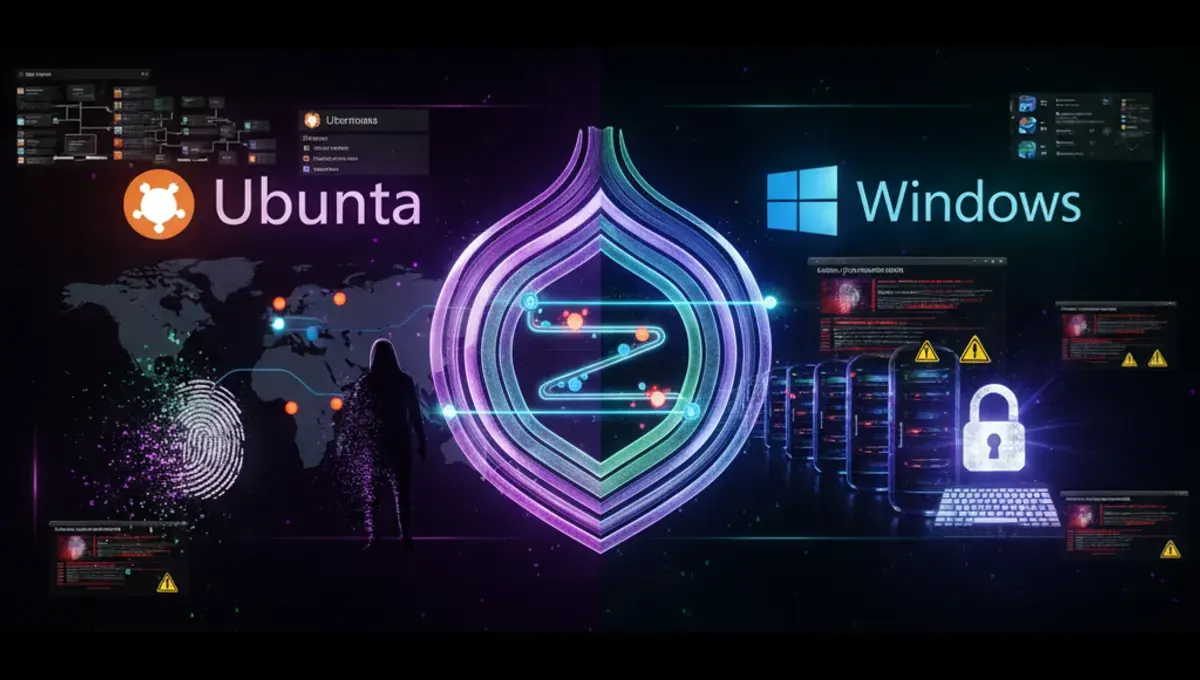
Dual booting means installing two operating systems on separate partitions of your hard drive. When you power on your computer, a bootloader presents a menu letting you choose which OS to load. The GRUB bootloader typically manages this selection when dual booting Ubuntu and Windows. Each operating system remains isolated in its own partition, so changes in one don't affect the other. This differs from virtualization, where one OS runs inside another as a guest. Dual boot gives you native performance for both systems but requires you to restart to switch between them.
Preparing Your Disk for Dual Boot Windows and Ubuntu
Before installing either operating system, you need to plan your partition layout. Most users allocate 50-100GB for Windows and 30-50GB for Ubuntu, depending on their needs. If Windows is already installed, use its Disk Management tool to shrink the existing partition, creating unallocated space for Ubuntu. For a fresh setup, create partitions during the initial OS installation. Back up all important data before modifying partitions. Use a partition manager like GParted if you need more control over partition sizing. Leave at least 10GB of free space on each partition for system updates and temporary files.
Installing Windows First in Dual Boot Setup
When setting up dual boot Windows with Ubuntu, install Windows first. Windows bootloader installation can overwrite GRUB, so doing it last prevents complications. Create a Windows installation USB using the Media Creation Tool or similar utility. Boot from the USB and select the smaller partition you created for Windows. Complete the Windows installation and all updates. Once Windows is fully functional, you're ready to install Ubuntu. This order ensures your bootloader configuration remains manageable and GRUB can properly detect and manage both operating systems.
Installing Ubuntu on Your Dual Boot System
Download Ubuntu from the official repository and create a bootable USB drive using Balena Etcher or Rufus. Restart your computer and boot from the USB. During Ubuntu installation, select 'Something Else' to manually partition your disk. Choose the unallocated space you created earlier. Create an ext4 partition for the root filesystem and optionally a separate partition for your home directory. Set the bootloader installation location to your disk's main drive, not a specific partition. Complete the installation and restart. GRUB will now appear at boot, allowing you to select between Ubuntu and Windows.
Configuring GRUB Bootloader for Both Systems
After installing dual boot Ubuntu Windows, GRUB automatically detects Windows and adds it to the boot menu. If Windows doesn't appear, run 'sudo update-grub' from Ubuntu to regenerate the bootloader configuration. You can customize GRUB's appearance and default OS by editing /etc/default/grub. Set GRUB_DEFAULT to choose which OS boots by default, and GRUB_TIMEOUT to control how long the menu displays. After editing, run 'sudo update-grub' again to apply changes. The bootloader typically waits 10 seconds before loading the default OS, giving you time to make a different selection.
Managing Time and System Settings Across Dual Boot
One common issue with dual boot Ubuntu Windows involves system time discrepancies. Windows stores time in local time, while Ubuntu uses UTC. This causes your clock to be wrong when switching between systems. Fix this by configuring Ubuntu to use local time instead of UTC. Open a terminal and run 'timedatectl set-local-rtc 1'. Alternatively, configure Windows to use UTC, though this requires registry changes. Keep both systems updated regularly, as security patches and driver updates can affect bootloader functionality. Synchronize your system time with an NTP server to maintain accuracy across both operating systems.
Troubleshooting Common Dual Boot Issues
If your dual boot Windows and Ubuntu setup fails to boot properly, several solutions exist. If GRUB doesn't appear, you may need to repair it using a live USB. Boot from Ubuntu USB, open a terminal, and run 'sudo grub-install /dev/sda' followed by 'sudo update-grub'. If Windows won't start, check that its partition wasn't accidentally modified. Use Windows recovery tools from installation media if needed. If you can't access one OS's files from the other, this is normal due to filesystem differences. Use external drives to transfer files between systems. Keep your bootloader and kernel updated to prevent compatibility issues.
Frequently asked questions
Is dual booting Ubuntu and Windows safe for my data?
Dual booting is safe if done correctly. Each OS resides on its own partition, so they don't interfere with each other's files. However, always back up your data before partitioning your drive. Mistakes during partition creation can cause data loss. Once properly configured, switching between systems won't damage files or settings.
Can I access Windows files from Ubuntu in a dual boot setup?
Yes, you can access Windows partitions from Ubuntu, but not vice versa. Ubuntu can read NTFS partitions with the ntfs-3g driver. However, Windows cannot natively read ext4 filesystems. Use external drives or network sharing to transfer files between systems when needed.
What happens if I delete the GRUB bootloader?
If GRUB is deleted, your computer won't present a boot menu and may fail to start. You can repair this using a Ubuntu live USB. Boot from the USB, open a terminal, and reinstall GRUB using 'sudo grub-install' and 'sudo update-grub' commands. This restores your bootloader without affecting your installed systems.
How much disk space do I need for dual boot Ubuntu Windows?
Allocate at least 50GB for Windows and 30GB for Ubuntu, though more is better. Windows typically needs 20-30GB for the OS and updates, while Ubuntu needs 15-20GB. Additional space depends on your applications and files. Leave 10GB free on each partition for system updates and temporary files.
Can I remove one OS without affecting the other in dual boot?
You can remove one OS, but it requires careful partitioning work. Deleting a partition removes that OS entirely. After deletion, you may need to reinstall GRUB to ensure the remaining OS boots properly. Use GParted or similar tools to safely delete partitions and reclaim space.