Prepare Your System and Backup Data
Before making any changes, back up all important files to an external drive or cloud storage. You'll be modifying your hard drive's partition structure, and mistakes can result in data loss. Check your current disk space in Windows 11 by opening File Explorer, right-clicking your C: drive, and selecting Properties. You'll need at least 50GB free for a comfortable Linux installation, though 100GB is better if you plan to use Linux regularly. Disable Secure Boot and Fast Startup in Windows 11 settings, as these can interfere with Linux installation. Access these settings through System Settings > System > Recovery, then Advanced Startup Options.
Shrink Your Windows 11 Partition
Windows 11 occupies your entire drive by default. You need to create unallocated space for Linux. Open Disk Management by right-clicking This PC and selecting Manage. Find your main Windows partition, right-click it, and select Shrink Volume. Enter the amount of space to shrink in megabytes. For example, entering 102400 creates 100GB of free space. The system will analyze the volume and show how much space is available to shrink. Complete the process and you'll see unallocated space appear next to your Windows partition. Don't create a new partition in this space yet; leave it unallocated for Linux to use during installation.
Create Linux Installation Media
Download Ubuntu or another Linux distribution from the official website. You'll get an ISO file, which is a disk image. Use a tool like Rufus or Balena Etcher to write this ISO to a USB drive at least 4GB in size. Insert a blank USB drive, open your chosen tool, select the ISO file, choose the USB drive as the destination, and start the write process. This takes several minutes. Once complete, you have bootable Linux installation media. Keep this USB drive handy for the next steps. The same process works for dual boot ubuntu and windows or dual boot ubuntu windows setups.
Boot from USB and Install Linux
Insert the Linux USB drive and restart your computer. During startup, press the boot menu key (usually F12, F2, ESC, or DEL depending on your manufacturer) to access the boot menu. Select your USB drive from the list. The Linux installer will load. When prompted to choose an installation type, select 'Something Else' or 'Custom Installation' to manually partition your drive. Select the unallocated space you created earlier and create partitions for Linux. A typical setup includes a root partition and a swap partition. Proceed with installation, and the Linux bootloader will be installed to your drive's boot sector.
Configure GRUB Bootloader
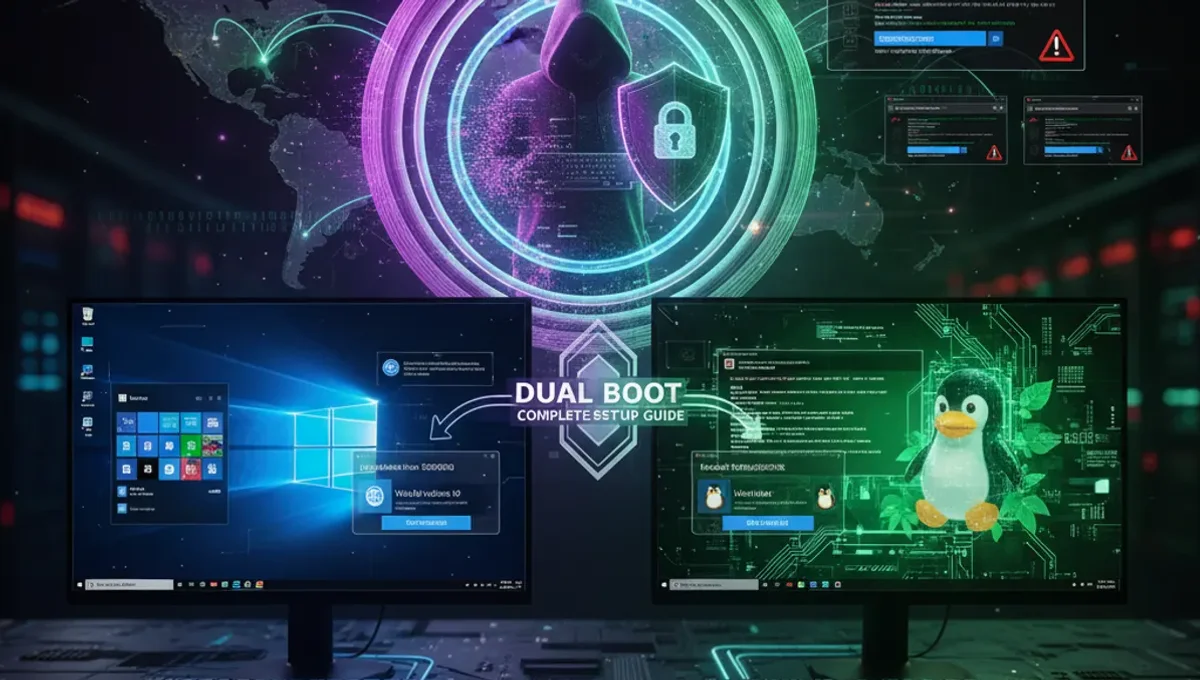
After Linux installation completes, restart your computer. You should see GRUB, the bootloader menu, displaying options for Windows 11 and Linux. Use arrow keys to select your preferred OS and press Enter. GRUB automatically detects both systems during Linux installation. If Windows doesn't appear in the menu, boot into Linux and run 'sudo update-grub' from the terminal to refresh the bootloader configuration. You can set a default OS and adjust the timeout before automatic boot in /etc/default/grub. This bootloader approach works whether you're doing dual boot windows and ubuntu or dual boot windows ubuntu configurations.
Verify Both Systems Work Properly
Boot into Windows 11 first and verify all your files and programs are intact. Check Disk Management to confirm your partitions are correctly configured. Restart and select Linux from GRUB to ensure it boots properly. Test basic functions in both systems, including internet connectivity and hardware recognition. Some devices may need additional driver installation in Linux. If either system fails to boot, restart from your Linux USB drive and use recovery tools to repair the bootloader. Keep your installation media in a safe place for future troubleshooting. This verification step is crucial for stable dual boot windows 10 and linux or any dual boot setup.
Manage Your Dual Boot System
Once both systems are running, manage them by choosing your preferred OS at startup. You can adjust GRUB settings to change the default boot OS or increase the timeout before automatic selection. In Linux, edit /etc/default/grub and modify GRUB_DEFAULT and GRUB_TIMEOUT values, then run 'sudo update-grub'. Avoid installing major Windows updates immediately after dual boot setup, as they can overwrite your bootloader. If this happens, boot from Linux USB and reinstall GRUB. Regular backups of both systems prevent data loss if one OS becomes corrupted. Document your partition layout for reference during future maintenance.
Frequently asked questions
Will dual booting Windows 11 and Linux affect my Windows files?
No, as long as you partition correctly. Windows 11 stays on its own partition and Linux uses the unallocated space. Your Windows files remain untouched. However, always back up before modifying partitions, as mistakes can cause data loss. The two systems operate independently once installed.
Can I resize partitions after dual boot installation?
Yes, but it's risky. You can use GParted in Linux or Disk Management in Windows to resize partitions, but this requires careful planning and backups. Resizing the wrong partition or making mistakes can corrupt your system. It's safer to reinstall if you need significant partition changes.
What if GRUB doesn't show Windows 11 after installation?
Boot into Linux and run 'sudo update-grub' in the terminal. This scans your drive for other operating systems and updates the bootloader menu. If Windows still doesn't appear, you may need to manually add it to the GRUB configuration file. Consult your Linux distribution's documentation for specific steps.
How much disk space do I need for dual boot ubuntu and windows?
Windows 11 requires at least 64GB, and Ubuntu needs at least 25GB for a basic installation. For comfortable use of both systems, allocate 100GB to Windows and 50GB to Linux. If you plan heavy development work in Linux, increase its allocation to 100GB or more.
Can I switch between Windows and Linux without restarting?
No, dual booting requires a restart to switch operating systems. Each system runs independently on its own partition. If you need simultaneous access to both, consider virtual machines instead, though they're slower than native dual boot installations.